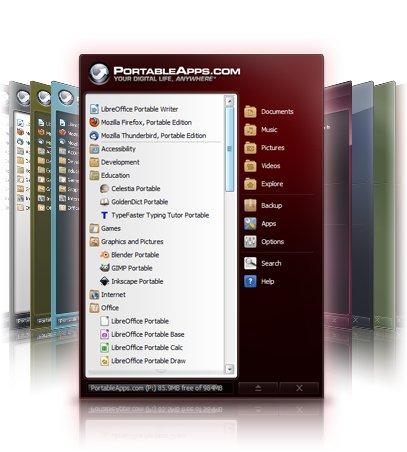
PortableApps keeps your portable programs and all their data in one folder. Put that folder on an encrypted drive or container, and every program, its settings and files open only with your password.
- One move protects everything: the PortableApps folder with all portable programs and their data goes to a Cryptic Disk encrypted drive or container.
- Access: enter the password and mount the drive. Lock: unmount it.
- Optional: PortableApps starts by itself when the drive is mounted.
- Close the programs before you unmount the drive.
No encrypted drive yet? Create an encrypted container or encrypt a volume with Cryptic Disk first.
How to encrypt PortableApps: move the folder
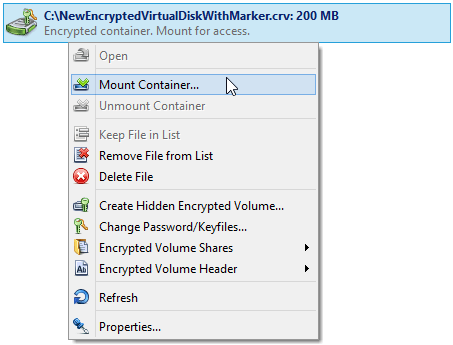
In Cryptic Disk, open the context menu of the encrypted volume or container and mount it.
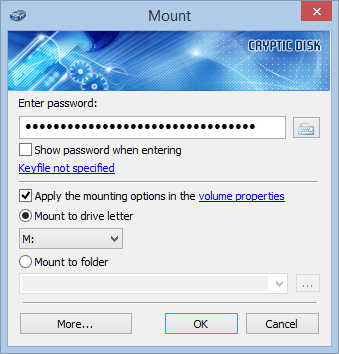
Pick any free drive letter.
Find it in Explorer, use "Cut", then "Paste" in the window of the mounted encrypted drive.
Start PortableApps automatically on mount
From the context menu of the encrypted volume or container in Cryptic Disk.
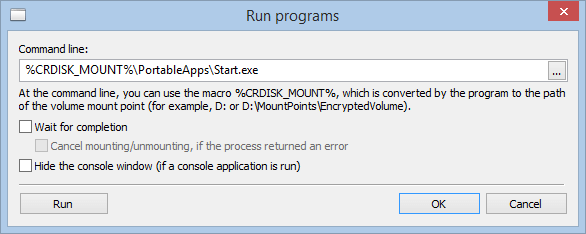
"Actions" tab, "After Mounting" subtab, "Add", "Run program...".
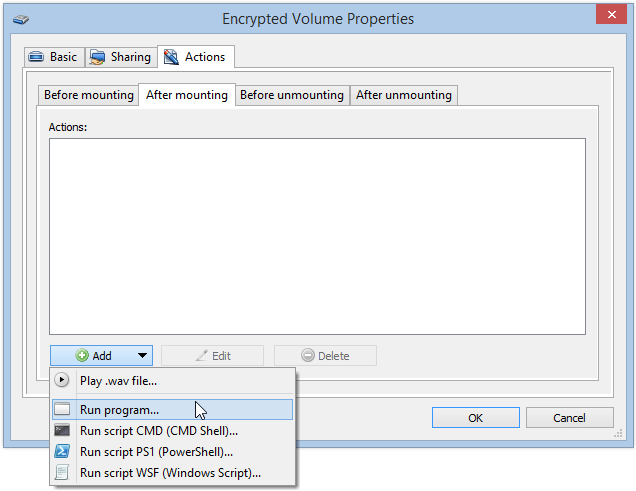
Click "..." and select Start.exe in the PortableApps folder on the mounted drive. Then "OK" in both windows.
Cryptic Disk replaces the drive letter with the %CRDISK_MOUNT% macro: the program starts from the encrypted drive whatever letter or folder it is mounted to.
Working with encrypted portable programs
No limitations during the trial. Windows 11, 10, 8.1, 8, 7, Vista and XP.
Free Trial Pricing & Buy