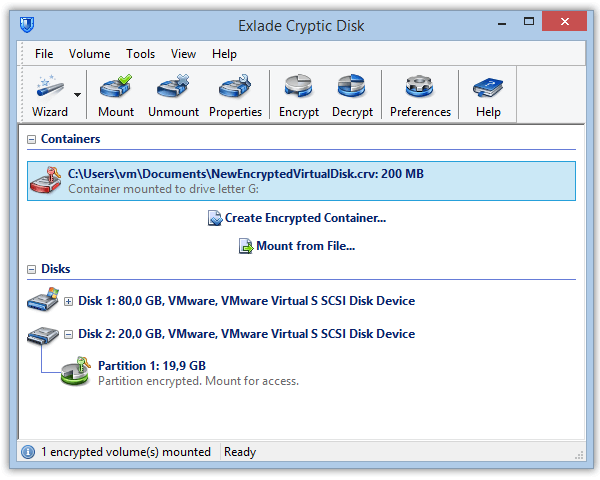
An encrypted container is a single file that turns into a separate drive with its own letter after you enter a password. You work with that drive like any other, while everything you save to it is stored encrypted inside the file. Unmount it, and only an unreadable file is left.
- Mounted, a container is a drive; unmounted, random-looking bytes.
- Better than a whole encrypted drive for a few folders and data that travels.
- Windows alone: VHD + BitLocker, in Pro, Enterprise and Education only.
- Cryptic Disk: six wizard steps, good defaults. Save the header backup.
What an encrypted container is
A container, or encrypted virtual drive, is an ordinary file with a complete file system inside. It can sit on any disk, USB stick or cloud sync folder.
Copy or back it up like any file; keep several with different passwords.
Container or a whole encrypted drive?
Cryptic Disk can also encrypt entire partitions, external drives and USB sticks.
- A few folders, no reformatting
- Data travels: USB stick, backups, cloud
- Others use the open part of the drive
- Everything is sensitive, nothing may stay unencrypted
- A container file can be deleted with all its contents
- An encrypted drive is slightly faster
Cryptic Disk can't encrypt the Windows partition, but a container can live there (programs may leave temporary copies of opened files on it). Whole drives: see the drive encryption guide.
Can’t Windows do this on its own?
Partly: in Disk Management (Action > Create VHD), create a VHD or VHDX file, attach it and turn on BitLocker (Microsoft supports it for data VHDs).
| VHD + BitLocker | Cryptic Disk container | |
|---|---|---|
| Price | free | paid once; 30-day trial |
| Windows | Pro, Enterprise, Education (not Home) | all editions, Home included |
| Forgotten password | recovery key restores access | data is lost |
| Opening | attach (admin rights), unlock; usually after each restart | password, drive letter, done |
| Closing | open until restart, detach or manage-bde -lock | hot keys, auto-unmount on lock |
Free, open-source VeraCrypt also creates containers: see our VeraCrypt alternative comparison.
How to create an encrypted container in Cryptic Disk
Install Cryptic Disk and click "Create Encrypted Container..." in the main window. The six steps have good defaults.
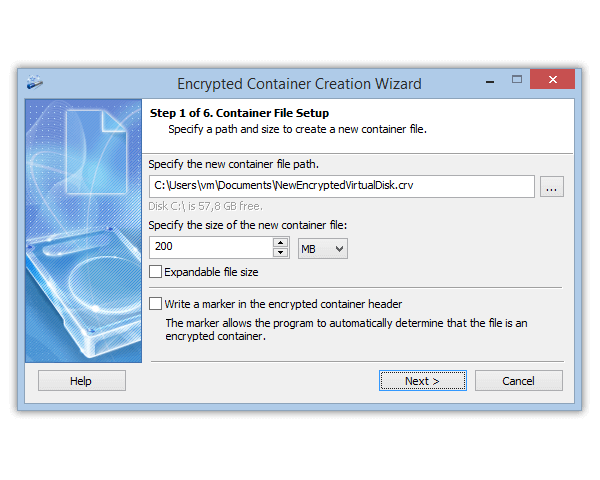
Choose the file location and size: a few GB for documents, much more for photos and videos. The full size is taken at once, so leave spare room.
"Write a marker in the encrypted container header": off, nobody can prove the file is a container; on, Cryptic Disk recognizes it. Same encryption strength.
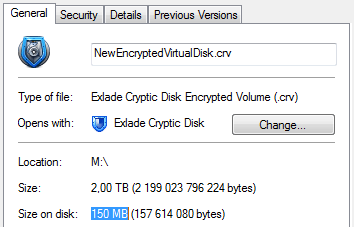
"Expandable file size": the file grows with your data (2 TB container, 640 KB on disk). But: NTFS only, slower, outsiders can see the unused part, no hidden volume, and a full disk can damage the container's file system.
FAT32 limit: FAT32 (many USB sticks) can't hold a file over 4 GB. For a larger container, use NTFS or exFAT.
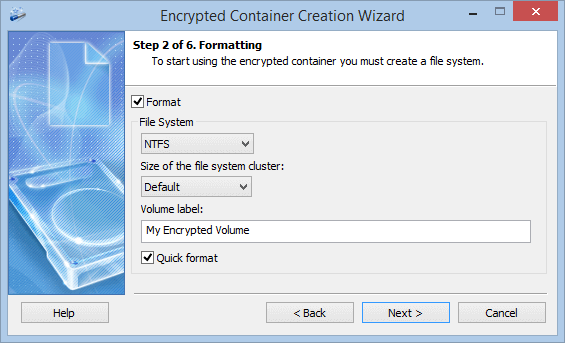
NTFS is a good default; exFAT also allows files over 4 GB, FAT32 doesn't. The label is the name in File Explorer.
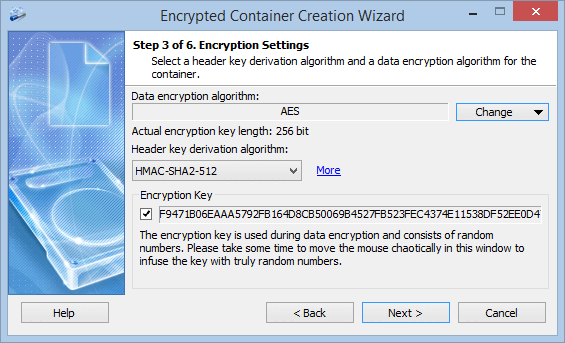
Keep the default or click "Change": AES, Serpent, Twofish, Blowfish, CAST6 or a cascade (details). Moving the mouse over the window adds randomness to the key.
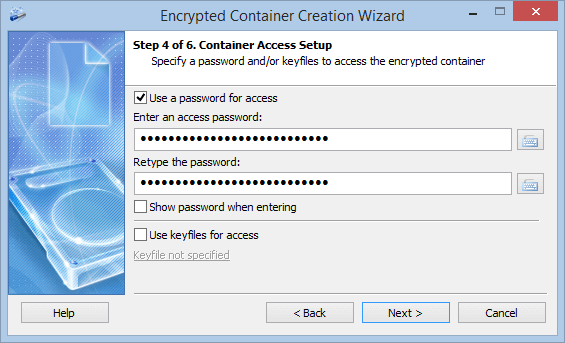
Use a passphrase of random words, 15+ characters (how long it should be). Add key files, and both are needed; the virtual keyboard helps against keyloggers. Slow key derivation makes mounting take a moment and guessing expensive.
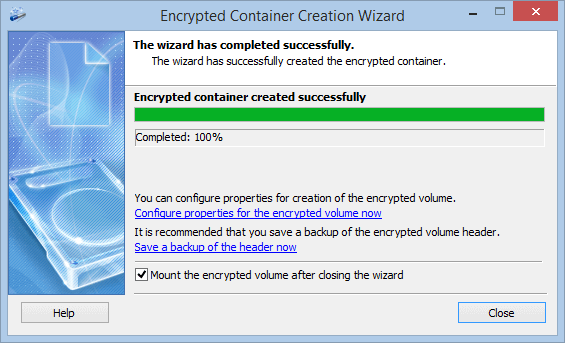
Click "Start". On the last page, click "Save a backup of the header now" and keep "Mount the encrypted volume after closing the wizard" on.
Mounting and unmounting
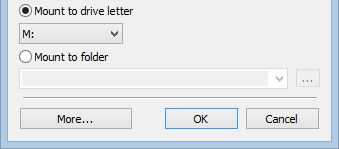
Select the container (or "Mount from File..."), enter the password, pick a free letter, click "OK". An empty folder such as D:\Private works too: a password-protected folder.
The drive appears in This PC.
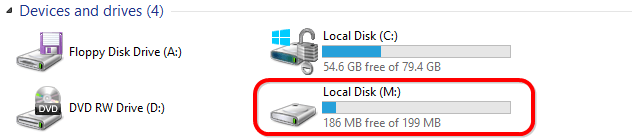
Close open files, then unmount in the main window or from the notification area icon. Windows shutdown unmounts all.
Hot keys and auto-unmount
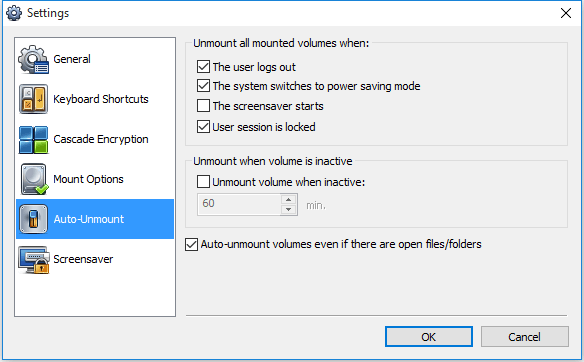
A container in Dropbox, OneDrive or Google Drive
The cloud only gets the encrypted file. Four rules:
Step by step: Dropbox folder and OneDrive or Google Drive.
A hidden volume inside the container
If you could be forced to reveal the password, add a hidden volume. The container then has two passwords:
Create it in an unmounted, non-expandable container. When writing to the outer drive, enable hidden volume protection in the mount options, or new files may overwrite it.
Don't let anyone compare versions of the container: cloud version history, sync copies or old backups show which "free" areas changed and can reveal the hidden volume. Keep a container with a hidden volume out of sync folders.
More: hidden volumes guide and plausible deniability.
Header backup: what it does and doesn’t do
The key lives in the container header. If it is damaged, only a copy saves the data. Cryptic Disk saves the header to a file and restores it; the copy is protected by the password valid when you saved it.
- After header damage
- If you changed the password and forgot the new one
- If you forget your only password: the data is lost for good
Keep the header copy away from the container, and back up the unmounted container file to another drive.
FAQ
Can I open the container on another computer?
Yes, with Windows and Cryptic Disk installed or extracted to a folder or USB stick (“Extract” mode). No macOS, Linux, Android or iOS versions.
Does it work on Windows 11 Home?
Yes, all editions of Windows 11, 10, 8.1, 8, 7, Vista and XP.
Can Cryptic Disk open my old TrueCrypt containers?
Yes, it opens TrueCrypt file containers and detects the format. Some extra options need the Cryptic Disk format. See TrueCrypt in 2026.
Can someone tell that a file is an encrypted container?
Not if the marker is off: it looks like random data. A large file of unknown format can still raise questions; a hidden volume helps there.
No limitations during the trial. One-time license, Windows 11 back to XP.
Free Trial Pricing & Buy