A family PC is shared by kids, partners and guests, and a work laptop sometimes ends up in a colleague’s hands. Usually you only want to lock one folder with scanned documents, private photos or work files, yet Windows 10 and 11 have no button for that.
- Windows has no password for a single folder, in 11 or in 10.
- Built-in options fall short: hiding is not protection, EFS and BitLocker are open to anyone signed in to your account, ZIP leaves unencrypted copies.
- What works: an encrypted container in Cryptic Disk, mounted to an empty folder. Without the password the folder stays empty.
- Close it when you step away: with a hot key or automatically on Win+L.
What Windows offers out of the box
Windows protects data with your account password and drive encryption, not with a password for one folder. Separate Windows accounts for each person help, but not against an administrator or someone at your unlocked PC.
Hidden folder
Tick “Hidden” in the folder’s properties, and it disappears from File Explorer.
- Free, takes seconds
- Not protection: show hidden items in File Explorer and it's back
- Files are not encrypted
EFS encryption
In Windows Pro, Enterprise and Education, the folder’s advanced attributes have “Encrypt contents to secure data”: the built-in Encrypting File System (EFS).
- Built in, files open as usual
- Not in Windows Home
- Tied to your account, no separate password: anyone signed in as you sees the files
- Back up the certificate and private key, or files may not open after reinstalling Windows
Password-protected ZIP or 7z archive
File Explorer can’t add a password to a ZIP file, but 7-Zip or WinRAR can. Choose AES-256; with 7z also encrypt file names.
- Free, easy to store and send
- Hard to open with a long password
- To edit a file you extract it, and that copy sits on the disk unencrypted
- Extracted copies get forgotten in Downloads
- Fine for old documents, awkward for daily work
BitLocker
BitLocker encrypts entire drives in Windows Pro, Enterprise and Education. Windows Home only has the simplified “Device encryption”, on compatible hardware.
- Protects data if the laptop or drive is stolen
- Once you sign in, the drive is open to anyone using your account
- No password for one folder; a BitLocker virtual disk from Disk Management is tedious and impossible on Home
Apps that "lock" a folder without encrypting it are not much better: boot the PC from a USB stick or connect the drive to another computer, and the files are readable.
Only one file to protect? See how to encrypt a file with a password.
A password-protected folder built on an encrypted container
An encrypted container is an ordinary file holding an encrypted virtual drive. Cryptic Disk mounts it with your password; files are encrypted on write and decrypted on read, transparently for your apps.
Step 1. Install the program
Get Cryptic Disk from the download page. It runs on Windows 11, 10 and older versions.
Step 2. Create an encrypted container
The wizard asks for the file location, size and password (guide with screenshots). Documents fit in a few gigabytes, photos and videos need more. Rather not guess? Tick “Expandable file size”:
- The file grows as you add data
- NTFS drives only, slower
- An outsider can tell which part is unused
- No hidden volume inside
- If the drive runs out of space, the container's file system can be damaged
Pick a long password you can remember: how long a password should be.
Step 3. Mount the container to a folder
Where you want to see your protected files, for example D:\Private.
In Cryptic Disk, select the container and start mounting it.
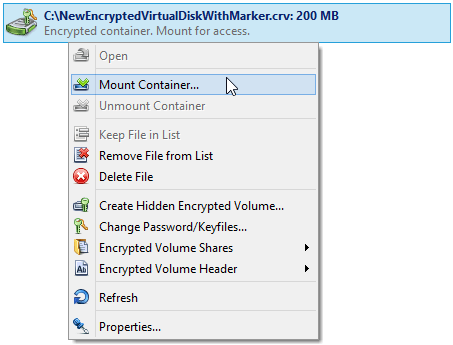
Enter the password, choose "Mount to folder" and select the folder. It now shows the encrypted drive.
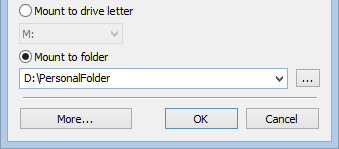
Save the mount options in the container's properties (they are kept in its encrypted header) to skip choosing the folder every time. Prefer a drive in This PC? Pick a drive letter instead. See extended features.
Step 4. Move your files in
Copy your documents in, check that they open, then delete the originals and empty the Recycle Bin.
Deleted files can sometimes be recovered with data recovery tools. Create new sensitive documents directly in the protected folder.
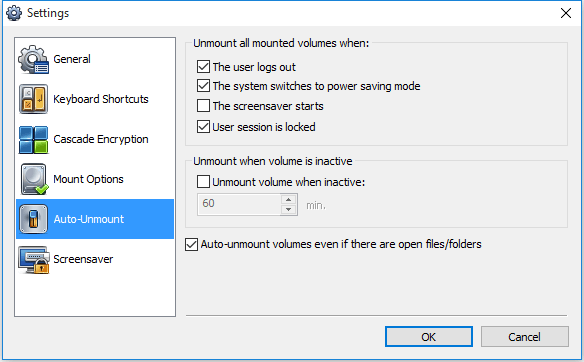
Step 5. Close the folder when you step away
While mounted, the files are visible to anyone at the computer. Close it from the main window, the notification area icon or with a hot key.
Tips to keep your data safe
Taking files with you? See how to password protect a USB flash drive.
FAQ
Can I password protect a folder without software?
Not really. Windows can hide a folder (not protection), encrypt it with EFS in Pro (anyone signed in to your account sees the files) or encrypt the whole drive with BitLocker. A password for one folder needs third-party software.
Can I password protect a folder in Windows 11?
No built-in option there either. The same methods as in Windows 10 apply: EFS, a password-protected archive or an encrypted container mounted to a folder.
What if I forget the folder password?
If you changed it and forgot the new one, a header backup saved before the change helps: restore it and open the container with the old password. If you forget the only password, the data can’t be decrypted: there is no back door.
Can I open the protected folder on another computer?
Yes. Copy the container to another PC or a USB stick and run Cryptic Disk there, installed or portable. It works only on Windows.
No limitations during the trial. Windows 11, 10, 8.1, 8, 7, Vista and XP.
Free Trial Pricing & Buy