A USB flash drive is the easiest thing in your bag to lose: in a colleague’s laptop, the office printer, on a hotel desk. If it holds contracts, scanned IDs or a work database, whoever finds it only has to plug it in. A password helps, but only with real encryption behind it.
- Windows can't just "lock" a USB drive. Only encryption protects it.
- Windows Pro: BitLocker To Go. Home can unlock such a drive, not encrypt one.
- Any edition: Cryptic Disk encrypts the whole drive or a container file on it.
- Save a header backup. A forgotten only password can't be recovered.
Why Windows can’t simply “put a password” on a USB drive
File Explorer has no command to lock a drive with a password. The “Hidden” attribute is undone by one Explorer setting on any PC, and a Windows account password protects only signing in, not a stick plugged into another PC. Only encryption works: without the password, the data can’t be decrypted. There are three ways.
Method 1: encrypt the whole USB drive
For a drive with only your data that you open on Windows PCs. Nothing on it stays unencrypted by accident.
Install Cryptic Disk from the download page. Copy everything from the stick to your computer: you need a backup anyway, and it allows the faster method.
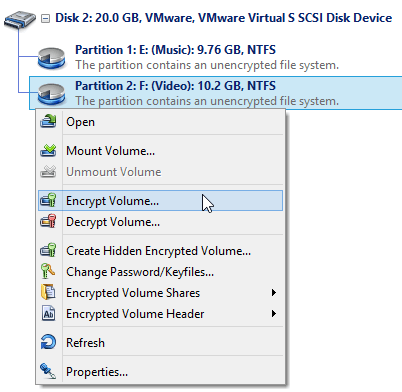
In the main window, right-click the USB drive's partition and choose "Encrypt Volume".
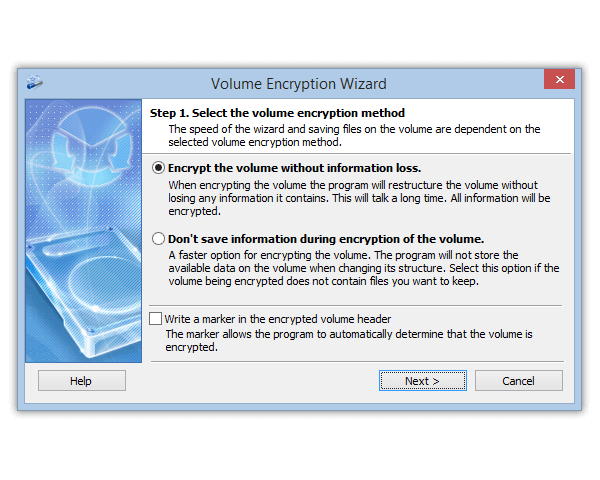
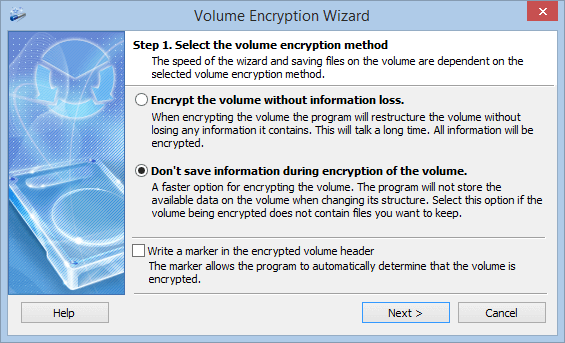
- "Don't save information during encryption of the volume": fast, erases everything on the drive.
- "Encrypt the volume without information loss": keeps files, but processes every sector, empty ones too, so it takes long. FAT32 and NTFS only. Don't unplug the drive meanwhile.
Leave "Write a marker in the encrypted volume header" off: without the password, nobody can prove the drive holds encrypted data, it looks like random bytes (how it works).
With formatting, pick exFAT (Windows 7 and later): unlike FAT32, it stores files over 4 GB. Set a password and, optionally, key files, check the settings and start.
The wizard offers it at the end. Do it (see the tips below).
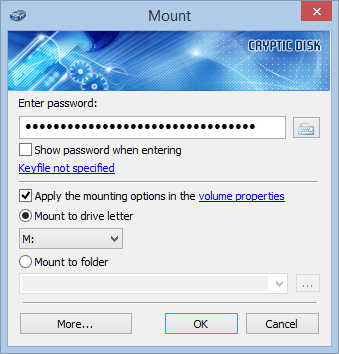
Enter the password and pick a free drive letter. The drive appears in File Explorer; copy your files back.
Every wizard page with screenshots: step-by-step guide to encrypting a drive.
Windows offers to format the drive? Say no. It doesn't recognize the encrypted file system, and formatting destroys the data.
Method 2: an encrypted container on the USB drive
A container is a file that Cryptic Disk mounts, with the password, as a separate drive in File Explorer; everything in it is encrypted on the fly. The rest of the stick stays ordinary: a TV, a car stereo or a Mac uses the open part, and a portable copy of Cryptic Disk can sit next to the container.
In the main window, click "Create Encrypted Container...".
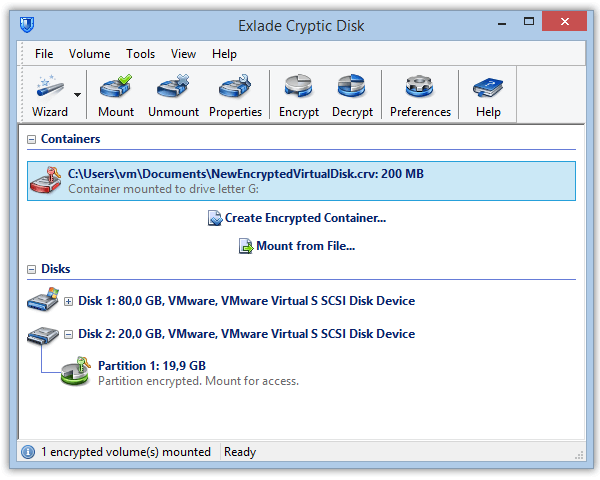
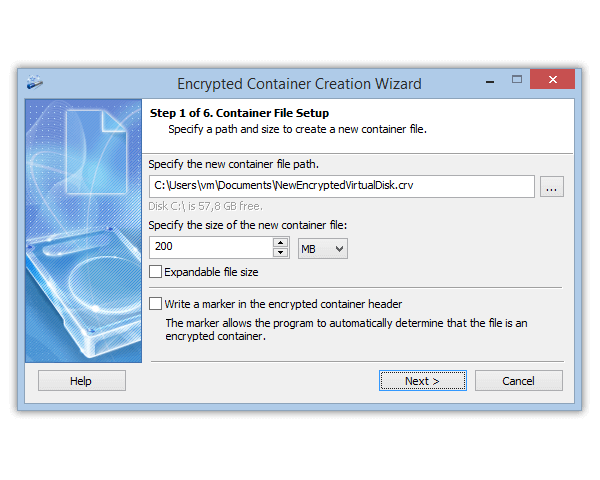
Choose a path on the USB drive and a size. "Expandable file size" grows the file with your data, but works only on NTFS; keep free space on the stick, or the container's file system can get damaged when it can't grow.
Pick a file system, set a password, let the wizard finish. Mount the container and use it like a normal drive.
FAT32 limit: no file over 4 GB, the container included. For a larger one, back up the stick and reformat it to exFAT or NTFS.
A container is an ordinary file and can be deleted by accident: keep a copy of important data elsewhere. Full walkthrough: how to create an encrypted container.
Which one to choose
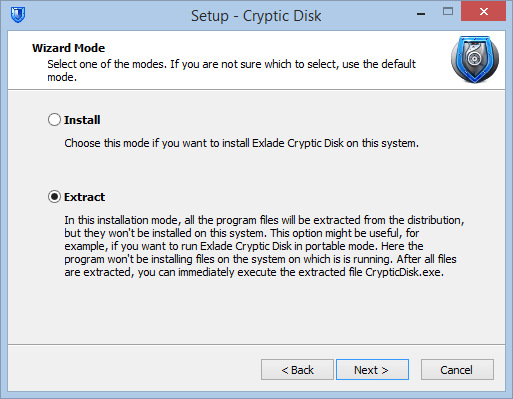
Using the encrypted drive on another computer
Tips to avoid losing your data
Back up the encryption key. It lives in the volume header; if the header is damaged, the data is unreadable without a copy. Save and restore it with "Encrypted Volume Header" in the context menu; keep the copy away from the stick. The copy opens only with the password valid when you saved it, so keep that password too.
Use a long passphrase: several random words, at least 15 characters if it's your only protection (how long a password should be). A key file adds a second factor: you need both.
Never keep the only copy on a flash drive. Drives fail and get lost, and encryption doesn't help with that. Back up regularly, ideally to an encrypted drive.
FAQ
Can I password protect a USB drive without software?
Only with BitLocker To Go on Windows Pro, Enterprise or Education. Windows Home can only unlock such a drive. Otherwise, use a hardware-encrypted drive or encryption software.
What happens if I forget the password?
There is no way around it. A key backup helps only with the password valid when you saved it, for example if you changed the password and forgot the new one. Forget the only password, and the data is lost for good: all you can do is format the drive.
Will an encrypted USB drive work on a Mac?
No, Cryptic Disk runs only on Windows. For other devices, use a container: the open part works everywhere, the container opens on a Windows PC.
Can I encrypt a USB drive without deleting the files on it?
Yes: the method without information loss (FAT32 and NTFS). It takes longer, so back up first anyway.
No limitations during the trial. Windows 11, 10, 8.1, 8, 7, Vista and XP.
Free Trial Pricing & Buy