A lost, stolen or borrowed laptop exposes documents, photos, messages and backups, and hidden folders, archives with a password or a Windows password won’t keep them private. Hidden volumes in Cryptic Disk hide data so that nobody can even tell it exists.
- A hidden volume is an encrypted area inside an encrypted container or drive that looks like random data.
- One password opens the outer volume, another the hidden one. Its existence can't be proven.
- Cryptic Disk nests hidden volumes up to 3 levels deep.
- Protect the hidden volume when writing to the outer one, and keep the container out of sync folders.
Why standard methods fail to provide privacy
Why fully hiding data matters
Some data is sensitive simply because it exists: personal photos and documents, work projects, financial files, passwords and keys, private notes.
What hidden volumes are

Why Cryptic Disk is a good choice for hidden volumes
- No service metadata: nobody can prove a hidden volume exists or find where it is
- 3 nesting levels, a unique password for each
- Containers of any size to carry on USB sticks and external drives
- A simple wizard and modern encryption algorithms
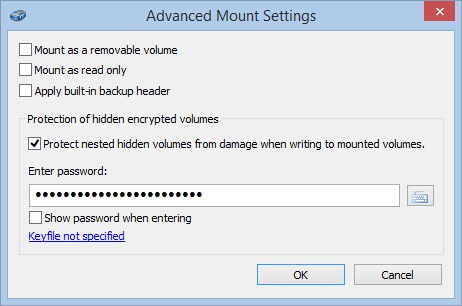
- Writing to the outer volume can overwrite the hidden one unless protection is on
- Comparing versions of the container can reveal it
- Its size is limited by the outer volume's free space
- Windows only, no system partition
How to create a hidden volume in Cryptic Disk
Install Cryptic Disk, then create a container or encrypt a drive.
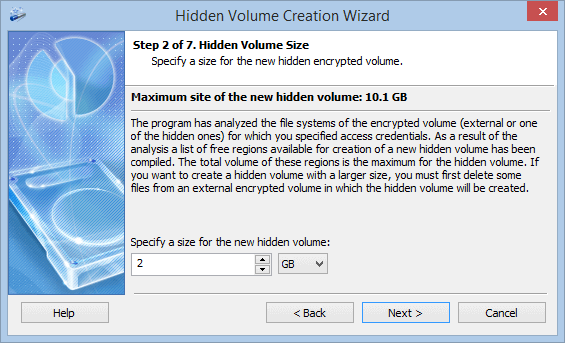
Unmount the container, select it, start the wizard and enter the outer password.
The hidden volume's password must differ from the outer one.
The password decides which volume opens. When writing to the outer volume, turn on hidden volume protection in the advanced mount settings.
Every step with screenshots: how to create a hidden encrypted volume.
Don't let anyone compare versions of the container: cloud version history, sync copies or old backups show which "free" areas changed and can reveal the hidden volume. Keep a container with a hidden volume out of sync folders.
How to strengthen the protection of hidden volumes
Add boot protection with Disk Password Protection:
Disk Password Protection doesn't encrypt data or stop booting from a USB stick. Also set a UEFI (BIOS) password and disable booting from external devices there.
Conclusion
To hide not just the content but the fact that data exists, use hidden volumes in Cryptic Disk, for personal and work data alike.
No limitations during the trial. Windows 11, 10, 8.1, 8, 7, Vista and XP.
Free Trial Pricing & Buy