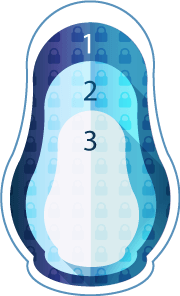
Inside an encrypted volume or container you can create a second, hidden encrypted volume. Nobody can prove that it exists.
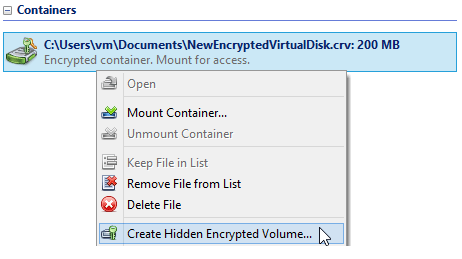
- Unmount the encrypted volume or container, select it in the main window and start the hidden volume wizard.
- Enter the outer volume's password, choose the size, set a different password for the hidden volume.
- The password you enter when mounting decides which volume opens.
- When writing to the outer volume, turn on hidden volume protection, or new files may overwrite it.
No encrypted volume or container yet? Create one first: How to Create an Encrypted Container or How to Encrypt a Volume.
Create a hidden encrypted volume
The guide shows a volume; a container works the same way.
The volume must be unmounted. Select it in the main window and start the hidden encrypted volume creation wizard.
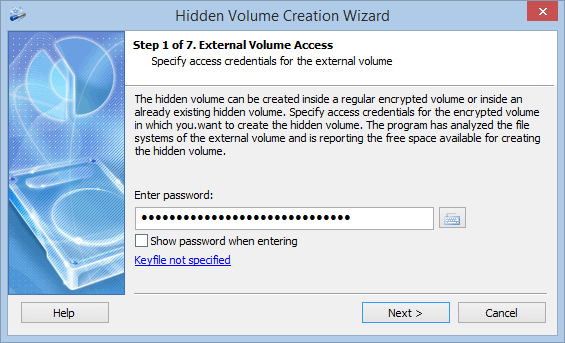
Enter the access parameters (a password and/or key files) of the encrypted volume that will hold the hidden one.
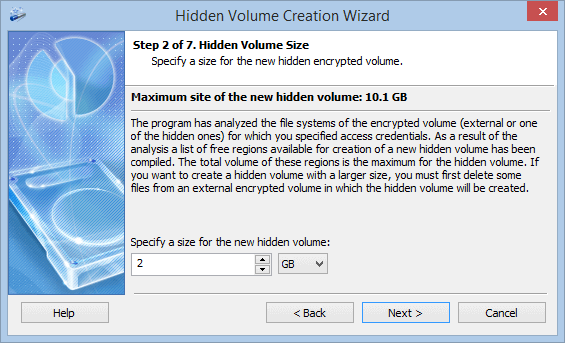
The program analyzes the file system, finds the areas not used by files and shows their total size: the maximum for the hidden volume. You can make it smaller.
The remaining steps are the same as in the container and volume wizards. Give the hidden volume a different password from the outer one.
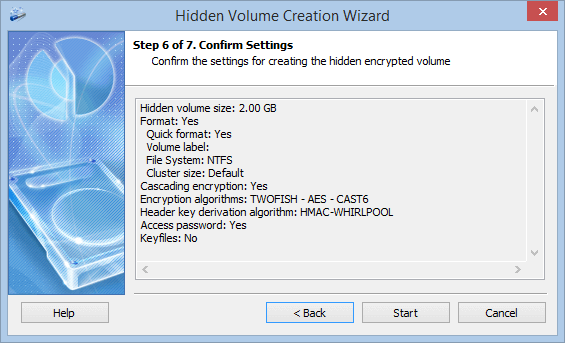
The hidden encrypted volume is created. Once mounted, it works like any ordinary volume.
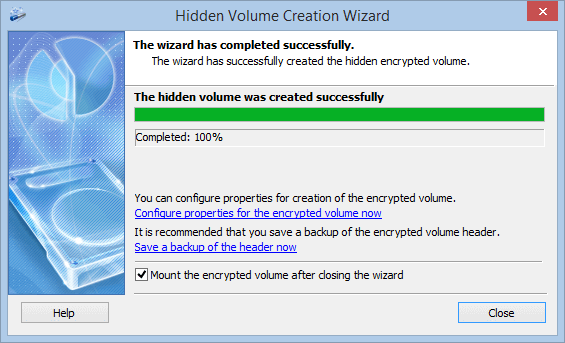
Mount the outer or the hidden volume
One container, two passwords. Which volume is the hidden one depends only on the password you enter.
Protect the hidden volume from being overwritten
The program knows nothing about hidden volumes: that is what makes their existence unprovable. So it doesn’t know which areas of the mounted outer volume the hidden one occupies, and files you write there can overwrite and damage it.
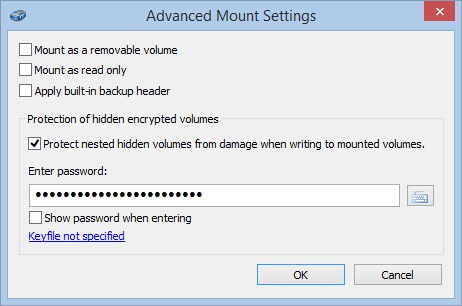
When mounting the outer volume, click "More..." in the mount window and enable "Protect nested hidden volumes from damage when writing to mounted volumes".
Enter the hidden volume's password. The program finds the areas the hidden volume occupies and blocks every write to them, so it stays intact.
Don't let anyone compare versions of the container: cloud version history, sync copies or old backups show which "free" areas changed and can reveal the hidden volume. Keep a container with a hidden volume out of sync folders.
More: hidden volumes guide and plausible deniability.
No limitations during the trial. Windows 11, 10, 8.1, 8, 7, Vista and XP.
Free Trial Pricing & Buy