Snapdragon X laptops, many of them sold as Copilot+ PCs, come with Windows Hello and often with encryption already on. A password that has to be entered before Windows even starts is still worth adding.
- Built-in protection guards the sign-in, not the startup.
- Disk Password Protection 5.6 adds a pre-boot password on 64-bit Windows on ARM, with Secure Boot and BitLocker on.
- Secured-core PCs may first need the Microsoft third-party UEFI CA allowed in UEFI.
- It doesn't encrypt: keep Device encryption or BitLocker on.
What Windows on ARM laptops are
Snapdragon X processors use the ARM architecture, not x86/x64 like Intel and AMD. They run a 64-bit Windows 11 for ARM, and apps run natively or through built-in emulation. Copilot+ PC is Microsoft’s label for laptops with an AI processor (NPU); Intel and AMD models carry it too, but this article is about the ARM ones.
Boot-level software can't rely on emulation: it has to be built for ARM. Make sure your boot protection supports Windows on ARM.
What protection you already have
- Windows Hello: face, fingerprint or PIN, safer than a short password
- System drive encryption, often on: Device encryption on Home, BitLocker on Pro
- Secure Boot: only boot loaders with a trusted signature start, so leave it on
- Windows Hello only protects the sign-in
- Encryption isn't always on: it depends on the edition and the first setup
- The drive usually unlocks automatically, and Windows boots to the lock screen
Device encryption and BitLocker: how to check
- Open Settings > Privacy & security > Device encryption. On Pro you can also search the Start menu for BitLocker.
- Make sure encryption is on.
- Find your recovery key (usually in your Microsoft account) and keep a copy off the laptop: without it you can lose your data after a firmware update or a hardware change.
Why a password before Windows starts still helps
Whoever picks up the laptop gets a running system guarded only by the sign-in screen. A pre-boot password adds a barrier.
Disk Password Protection 5.6 on an ARM laptop
Disk Password Protection asks for a password before the operating system starts. Since version 5.6 it works on Snapdragon laptops.
Important for Secured-core PCs. On some laptops, especially Secured-core PCs (many Copilot+ PCs are), the UEFI firmware by default doesn't trust third-party modules signed with the Microsoft UEFI CA. Before installing boot protection, enable the UEFI setting that allows the Microsoft third-party UEFI CA (its name depends on the manufacturer). Secure Boot stays on. If there is no such setting, check with the manufacturer.
Test on your own device first and keep the BitLocker recovery key at hand: changing UEFI settings can trigger the BitLocker recovery screen.
Details: Disk Password Protection 5.6 release notes.
How to set a pre-boot password
Download Disk Password Protection and install it.
Make sure your BitLocker recovery key is saved and you can reach it.
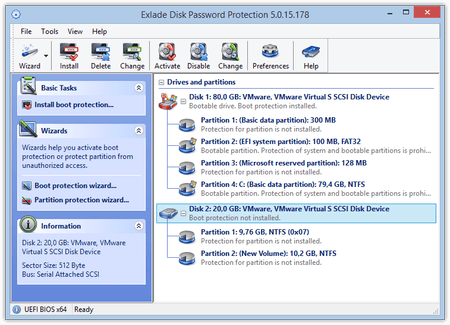
In the main window, find the system disk and choose "Install boot protection...".
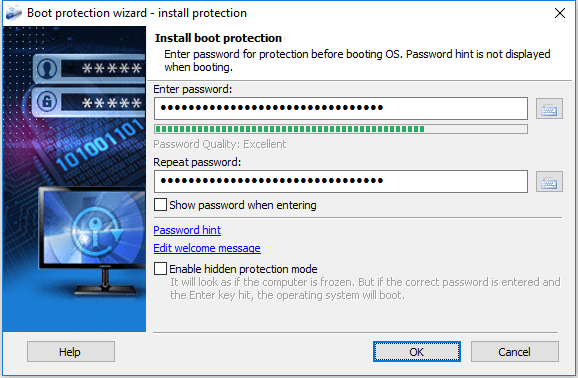
Enter it twice. Add a "Password hint" if you like; check "Enable hidden protection mode" to hide the password screen.
Click "OK" and restart. The password prompt now appears before Windows starts.
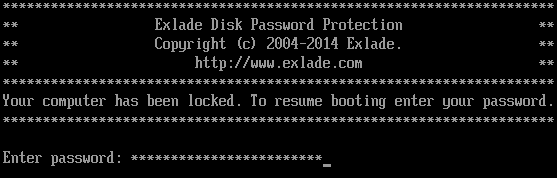
You type the password on the laptop keyboard, so a long passphrase of several words beats a short string of symbols. More: how to set a password on computer startup and the boot protection page.
UEFI settings on ARM laptops
The UEFI menu varies a lot between ARM models and may offer fewer options than usual (see the manufacturer’s documentation). If they are there:
- set a UEFI administrator password;
- disable booting from USB and external drives;
- keep Secure Boot on.
Booting from a USB stick skips the Disk Password Protection prompt. If you can't disable USB boot, Device encryption still protects the data: it can't be read without the key.
Hiding partitions
Disk Password Protection can also remove a partition’s entry from the partition table: Windows doesn’t see it, Disk Management shows unallocated space, and it stays hidden on other computers and after uninstalling until you unhide it with the program and the password. The partition with the running Windows (usually C:, where an ARM laptop keeps everything) can’t be hidden, so this is for a separate data partition or an external drive. See how to hide a partition in Windows.
What Disk Password Protection doesn’t do
- It doesn't encrypt data. A hidden partition can be found with data recovery tools. To encrypt, use Device encryption or BitLocker: our Cryptic Disk has no ARM version.
- It doesn't stop booting from USB. Use the UEFI settings above where your model has them.
- There is no master password. Pick one you won't forget and add a hint.
A solid setup: Device encryption or BitLocker with a saved recovery key, Windows Hello for sign-in, a pre-boot password from Disk Password Protection and, where possible, a UEFI password with USB boot disabled.
FAQ
Can I set a startup password on a Snapdragon laptop?
Yes: some models offer a UEFI password, and Disk Password Protection 5.6 asks for a password before Windows starts on 64-bit Windows on ARM.
Is encryption on by default on Copilot+ PCs?
Often, but not always. Check Settings > Privacy & security > Device encryption and save your recovery key.
Do I need to disable Secure Boot for Disk Password Protection?
No. Its UEFI modules are signed with Microsoft UEFI CA 2023. On some models, especially Secured-core PCs, first allow the Microsoft third-party UEFI CA in the UEFI settings; Secure Boot stays on.
Does Disk Password Protection work with BitLocker?
Yes, on UEFI systems since version 5.6: encryption protects the data, the pre-boot password keeps the system from starting.
Does a pre-boot password replace encryption?
No. Disk Password Protection doesn’t encrypt data, so keep Device encryption or BitLocker on.
No limitations during the trial. Windows 11, 10, 8.1, 8 and 7 SP1.
Free Trial Pricing & Buy