
Windows 10 and 11 can hide a drive or partition in a couple of minutes with built-in tools, but only out of sight: anyone with administrator rights brings it back just as quickly. Here are the three built-in methods and a fourth one that hides a partition with a password, even on another computer.
- Built-in tools (drive letter, diskpart, Group Policy or the registry) hide a drive from File Explorer only.
- Disk Password Protection hides it from Windows and on other PCs, until you enter the password.
- The Windows partition (C:) can't be hidden by any method.
- Hiding is not encryption. Encrypt confidential data.
How to hide a partition with built-in Windows tools
Method 1. Remove the drive letter in Disk Management
File Explorer only shows partitions that have a drive letter.
Right-click the Start button and choose Disk Management.
Right-click the partition and choose "Change Drive Letter and Paths...".
Select the letter, click "Remove" and confirm. A warning about programs using this letter is fine for a data partition. The Windows partition (usually C:) keeps its letter.
- Gone from File Explorer and This PC
- Files stay in place
- Still in Disk Management: any administrator adds the letter back in a minute
- On another PC the partition gets a letter and opens as usual
- Disk utilities and recovery tools see the partition and its files
Method 2. diskpart: remove the letter or set the “hidden” attribute
Open Command Prompt or Terminal as administrator and run the commands one by one:
diskpart
list volume
select volume 3
remove letter=E
exit
Take the volume number (3) and the letter (E) from list volume and check the label and size: a wrong number hits a different partition. To give the letter back, select the same volume and run assign letter=E.
A volume also has a “hidden” attribute:
select volume 3
attributes volume set hidden
Windows then doesn’t mount the volume: no letter, no icon in File Explorer (sometimes only after a restart or reconnecting the drive). Not protection: Disk Management and diskpart still show it, and attributes volume clear hidden removes the attribute.
On MBR disks the attribute applies to all volumes on the disk. Use it only on a separate GPT data disk (an asterisk in the GPT column of list disk), never on the disk with Windows. If in doubt, just remove the letter.
Method 3. Hide a drive in File Explorer with Group Policy or the registry
The disk stays as it is, File Explorer just stops showing its icon: the usual way to hide a drive in Windows 11 for a tidier This PC.
On Windows 10 and 11 Pro there is the policy “Hide these specified drives in My Computer” (Win+R, gpedit.msc, User Configuration > Administrative Templates > Windows Components > File Explorer), but it offers only drives A to D or all drives. The registry handles any letter and works on Windows Home, which has no Group Policy Editor:
Press Win+R and type regedit.
Open HKEY_CURRENT_USER\Software\Microsoft\Windows\CurrentVersion\Policies\Explorer (create the Explorer key if it does not exist).
Create a DWORD (32-bit) value NoDrives with the decimal value of the letter: A = 1, B = 2, C = 4, D = 8, E = 16, F = 32, G = 64 (each next letter doubles). For several drives add them up: E and F = 48.
Or sign out and in. To show the drive again, delete NoDrives.
Only the icon is hidden: E:\ in the address bar opens the drive, and programs, the command line and Disk Management still see it. The setting applies only to the current user on this computer.
How to hide a partition with a password
Built-in methods don’t hide a partition from an administrator or another computer. Disk Password Protection works at the partition table level:
Hide the partition
Download Disk Password Protection, install it and start it.
Right-click the partition in the main window and choose the command to enable partition protection, or use the partition protection wizard in the left panel.
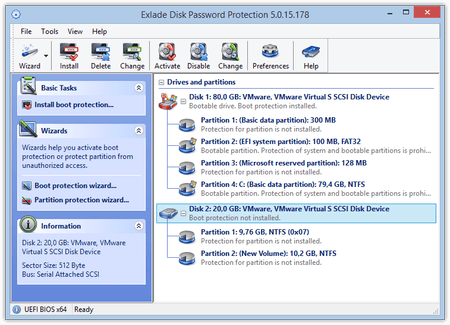
Enter it twice and confirm. Add a hint: the program shows it when you turn protection off.
In a few seconds protection is enabled: the partition is gone from File Explorer and any file or disk manager.
In Disk Management it looks like this:
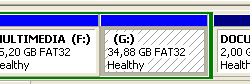
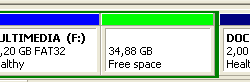
Do not create new partitions in this unallocated space: that can damage the hidden data.
Unhide the partition
Right-click the protected partition and choose the command to disable partition protection. The same menu changes the password.
Confirm, and in a few seconds the partition is back with all its files.
What you should know
Hiding is not encryption. That's why it takes seconds, and data recovery tools can find the partition and read the files. For confidential data add encryption: Cryptic Disk encrypts a partition, an external drive or a container (see how to encrypt a volume).
There is no master password. A forgotten password leaves only data recovery tools, so set a hint.
Comparison of the methods
| Method | Hidden from | How to bring it back | On another PC |
|---|---|---|---|
| Remove the letter (Disk Management, diskpart) | File Explorer | Any admin assigns a letter | Visible, gets a letter |
| “Hidden” attribute (diskpart) | File Explorer, not mounted | Any admin, one command | Visible in Disk Management |
Group Policy or NoDrives | Only the icon in File Explorer | Type E:\ or delete the value | Visible as usual |
| Disk Password Protection | Windows and all programs | Only in the program, with the password | Stays hidden |
Which method to choose
Securing a whole laptop? See our guide to protecting a laptop and its data.
FAQ
How do I hide a partition in Windows 10 or 11 without extra software?
In Disk Management, right-click the partition, choose “Change Drive Letter and Paths…” and remove the letter. Any administrator can bring it back.
How do I unhide a hidden partition?
Assign the letter again in Disk Management (“Add…”) or with assign letter=E in diskpart, run attributes volume clear hidden, or delete NoDrives. With Disk Password Protection, disable protection with the password.
Can I hide the C: drive?
No, neither with Windows tools nor with Disk Password Protection. For the system drive, set a boot password and turn on BitLocker (or Device encryption on Windows Home with compatible hardware).
Is a hidden partition visible on another computer?
After removing the letter or setting NoDrives, yes. Hidden with Disk Password Protection, no, but the data isn’t encrypted and recovery tools can find it.
No limitations during the trial. Windows 11, 10, 8.1, 8 and 7 SP1.
Free Trial Pricing & Buy