A backup drive sits next to the laptop, in a drawer or a bag, with years of documents, photos, work projects and scanned IDs, all unprotected. Lose it, and a stranger gets your whole archive.
Here is how to encrypt an external hard drive or SSD on Windows with Cryptic Disk, back up to it and check that the backup works.
- Whole drive for a backup-only drive used with Windows PCs; a container if a TV or Mac also uses it.
- Once mounted, the drive has a normal letter, so any backup program can write to it.
- Unmount and unplug after each backup: a connected drive is within reach of ransomware.
- 3-2-1 rule, header backup, restore tests keep the backup usable.
Why your Windows password doesn’t protect the drive
Your Windows password protects the computer, not the external drive: plugged into another PC, every file on it can be read. Encrypted, the drive looks like random data until you enter the password, then works as usual, encrypting files on write and decrypting on read.
Whole drive or encrypted container?
A TV, media player, Mac, or Windows without Cryptic Disk sees an encrypted drive as unformatted and may offer to format it. Say no, or your backups are gone.
Container tips: its size is set at creation, so leave room for future backups; FAT32 can’t hold files over 4 GB, so use an NTFS or exFAT drive; copy the container like any file for a second backup.
How to encrypt an external drive with Cryptic Disk
Cryptic Disk encrypts drives and partitions, including USB sticks and external HDDs and SSDs. Every wizard screen: How to Encrypt a Volume. The short version:
Download and install it. It runs on Windows only (11, 10, 8.1, 8, 7, Vista, XP).
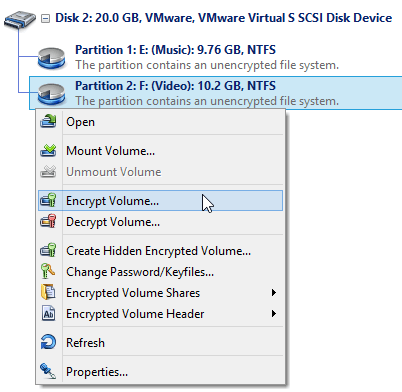
Connect the drive, right-click its partition in the main window and choose "Encrypt Volume...".
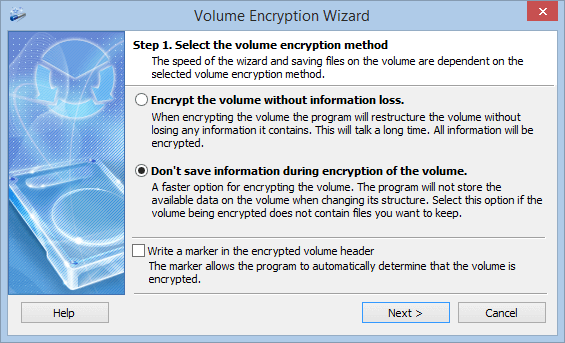
- "Encrypt the volume without information loss" keeps your files (NTFS, FAT32), but takes long: every sector is processed, even empty ones.
- "Don't save information during encryption of the volume" is much faster, but erases the drive. For a new drive, or if you'll run a fresh full backup.
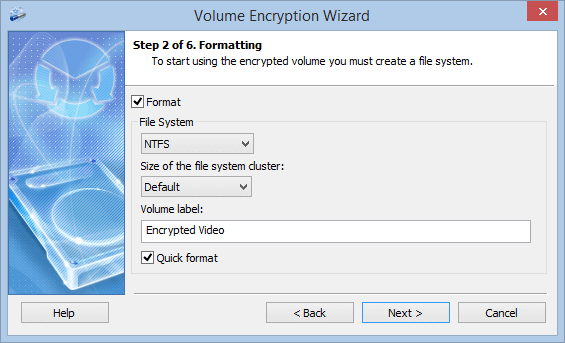
Only for the second method. NTFS suits a Windows backup drive.
"Quick format" only writes a new file system, so it finishes much faster, but the old data stays readable in the unused sectors of the disk. On a drive that held files before, turn quick format off.
Defaults are fine: AES uses hardware acceleration (AES-NI) on modern processors. Use a long phrase of several random words (how long a password should be). Optional key files must be stored and backed up separately from the drive.
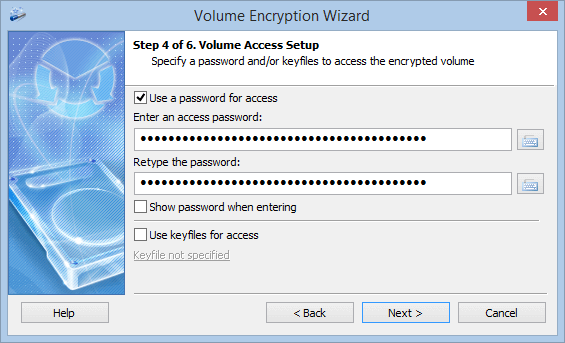
Review the settings and start. At the end, click "Save a backup of the header now" (why, see below).
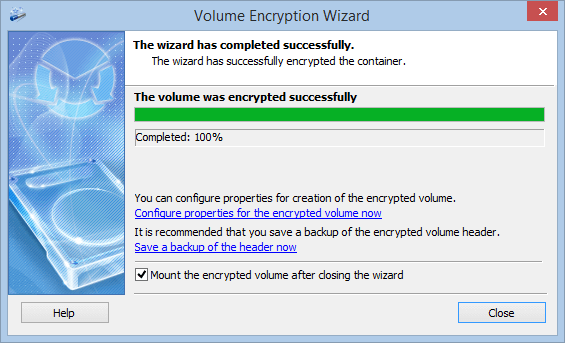
Backing up to the encrypted drive
Mounted with your password, the drive appears in File Explorer with an ordinary letter, so any backup program will do; encryption happens in the background.
Check that your backup program sees the mounted drive, and run backups only while it is mounted.
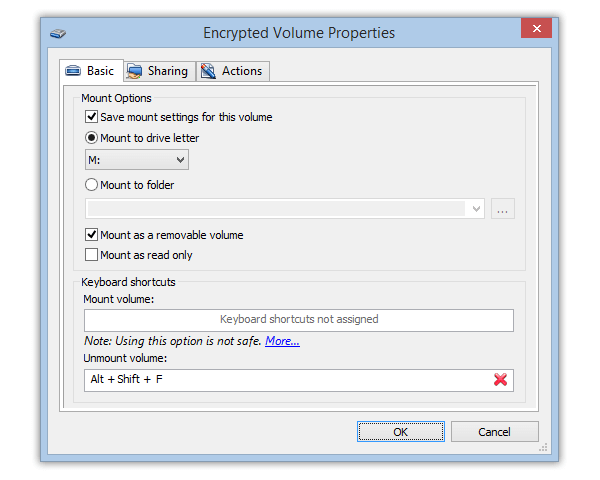
Backup programs remember it. In "Encrypted Volume Properties", turn on "Save mount settings for this volume" and pick a permanent letter.
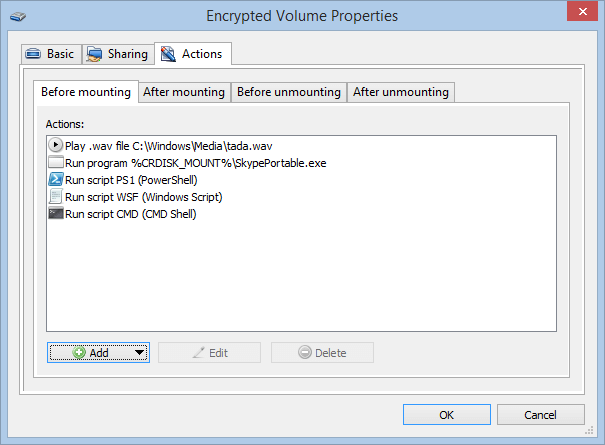
The "Actions" tab of the same window runs a program or script after mounting, for example your backup. There is also a command line for your own scripts.
A scheduled backup runs only if the drive is connected and mounted at that moment. If one didn't run, check this first.
Disconnecting the drive safely
Don't leave the backup drive plugged in. Ransomware on your PC can damage everything it reaches, a connected backup drive included.
Alternative: BitLocker To Go
The 3-2-1 rule and your key backup
Encryption won’t help if the drive dies or disappears. For important data, follow the 3-2-1 rule:
Back up the key too: Cryptic Disk saves the encryption key (the volume header) to a file and restores it (“Encrypted Volume Header” in the context menu). The file is protected by the password valid when you saved it.
- If the header on the drive gets damaged
- If you changed the password and forgot the new one: restore the old header, open with the old password
- If you forget your only password: there is no back door
- Without the password valid when you saved it: remember or store that one safely
Keep the header backup away from the drive: not on it and not in the same bag.
Test your restores
A backup you have never restored from is only a hope. Every few months:
Click "More..." in the mount window and tick "Mount as read only", so nothing changes by accident.
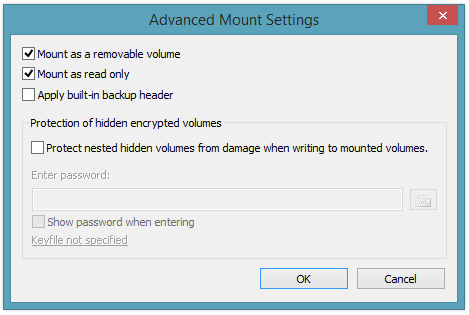
Restore them to a separate folder and open them.
Do you remember the password and know where the key backup is?
Restoring on another PC needs Cryptic Disk there too, installed or in portable mode.
FAQ
Can I password protect an external hard drive without encryption?
Not with Windows itself, and tools that only hide or lock a drive leave the data readable by recovery software. Disk Password Protection, for example, hides partitions on external drives but doesn’t encrypt them. Backups need real encryption.
Will encryption slow down my backups?
Usually not noticeably: Cryptic Disk uses hardware AES acceleration, and the drive and USB connection are the usual bottleneck.
Can I open the encrypted drive on a Mac or a TV?
No, Cryptic Disk is Windows-only (no macOS, Linux, Android or iOS). For a shared drive, use an encrypted container.
Can I encrypt an external drive that already has files on it?
Yes, with the method without information loss (NTFS, FAT32). It takes a while, so keep a copy of important files elsewhere.
What if I forget the password to my encrypted backup drive?
A header backup saved before a password change opens the drive with the old password. If you forget the only password, nobody can open the drive.
No limitations during the trial. Windows 11, 10, 8.1, 8, 7, Vista and XP.
Free Trial Pricing & Buy